Screen Shots
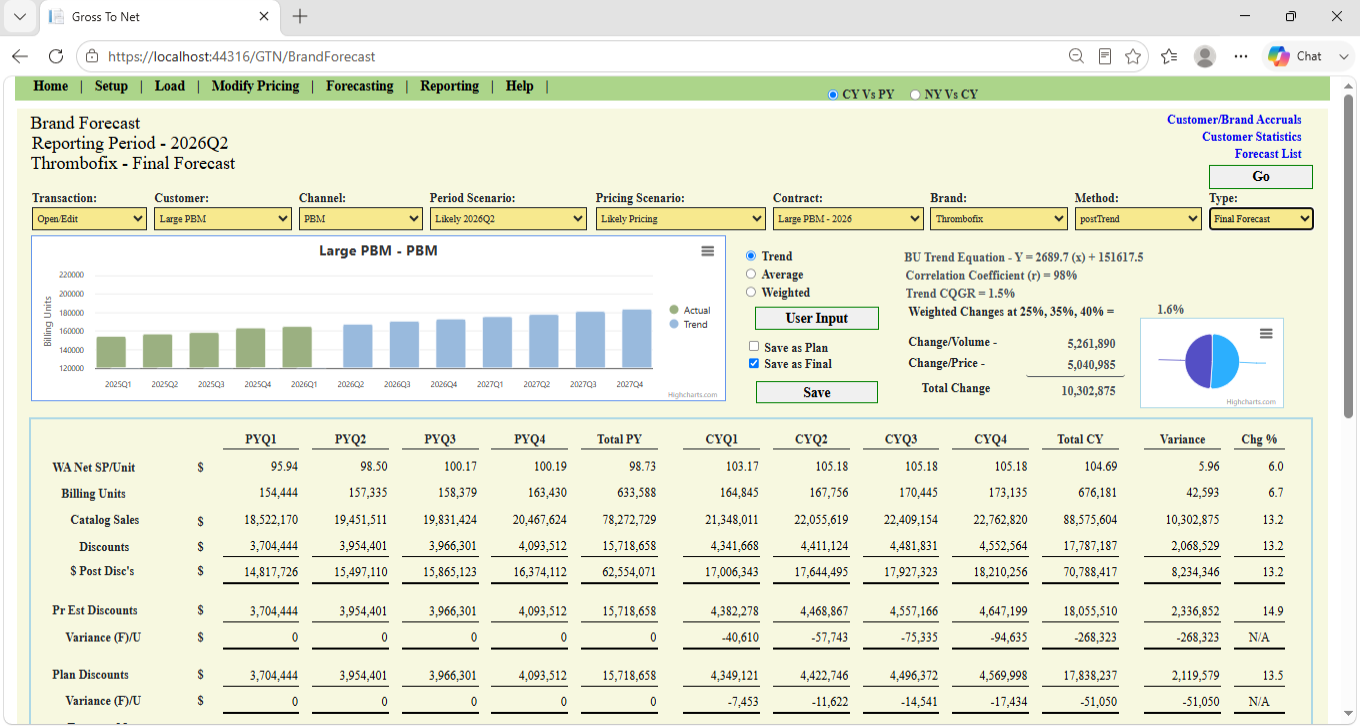
- Radio buttons to select periods rendered to the screen - Current Year vs. Prior Year or Next Year vs. Current Year.
- Reports accessible from Brand Forecast. Note, these reports remain open along with Brand Forecast for reference.
- Three year graphic depiction of Actual and Forecasted Billing Units given user's selection in number 4 (i.e. method used to project Units).
- Method Choices for Billing Unit Forecast - Trend, Average, Weighted, and User Input, which opens a form where the user can input a Custom Forecast or import values from another forecast Method and alter where necessary.
- Various statistics that help guide the user to the best possible Method of forecasting Billing Units (which drive the entire forecast). These statistics are also useful to National Accounts, Marketing, etc. The Price/Volume table and chart reconcile the change in Catalog Sales (see in report body). Note, for this Key Customer statistical 'r' is very high and therefore the user has chosen a simple Trend as a forecasting Method. Note further that the Trend equation includes the slope.
- There are 4 ways to save a Forecast - Preliminary Plan, Final Plan, Preliminary Forecast, and Final Forecast. The Forecast List report tracks all saved forecasts.
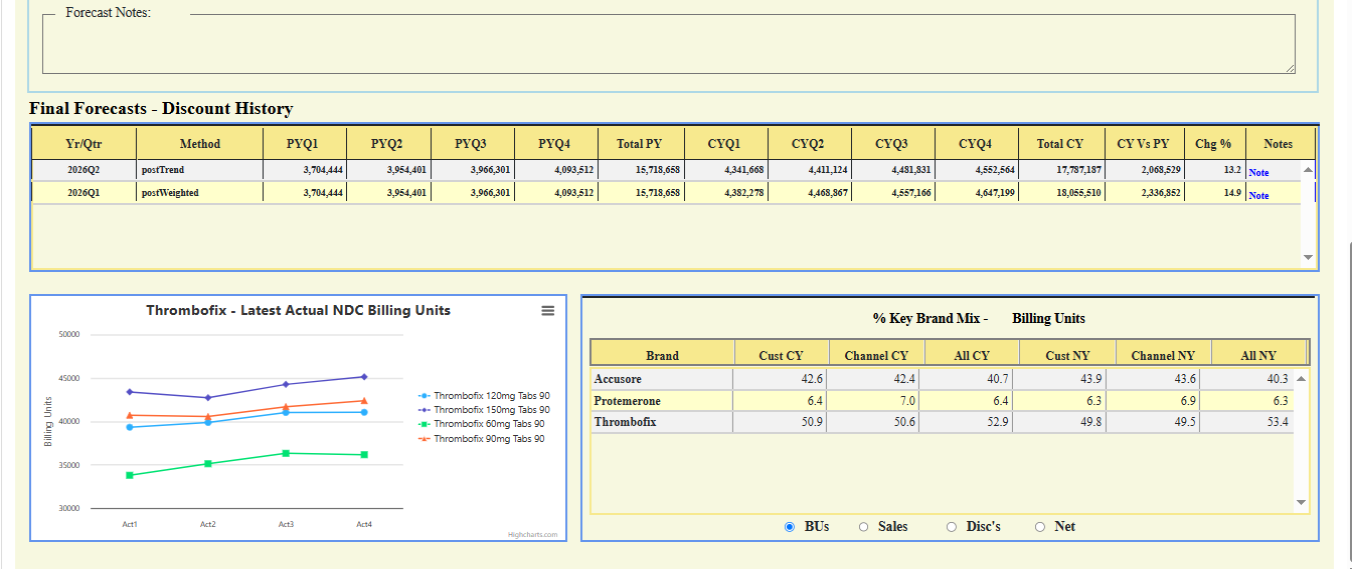
- Final Forecast History (by quarterly reporting period) Note, the user has access to previously recorded Forecast Notes.
- Latest 4 quarters of Actual Brand NDC Mix.
- Brand Mix - A dynamic report within a report. Radio buttons determine which mix comparisons are rendered to the screen.
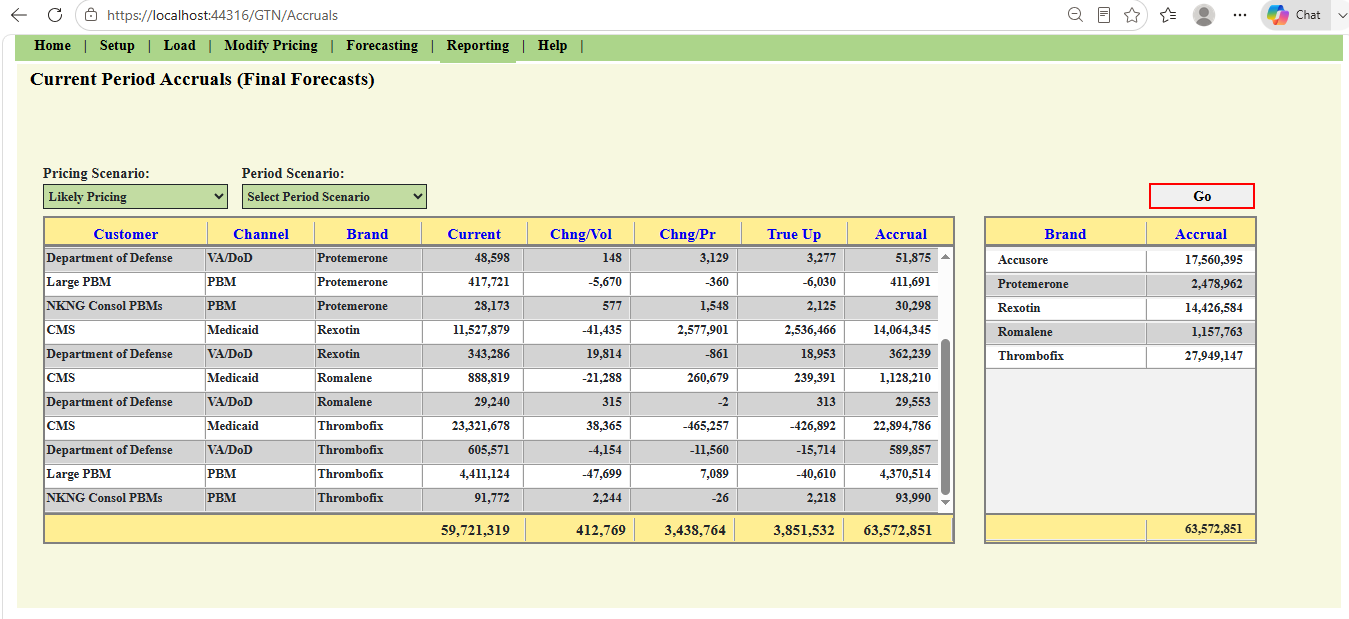
- True-Up Reconciliation - Allocation of Change In Volume and Change In Price.
- With the exception of Sales Based Agreements (i.e. Chargeback Customers) current accrual values and True-Ups can be verified on the Brand Forecast (above).
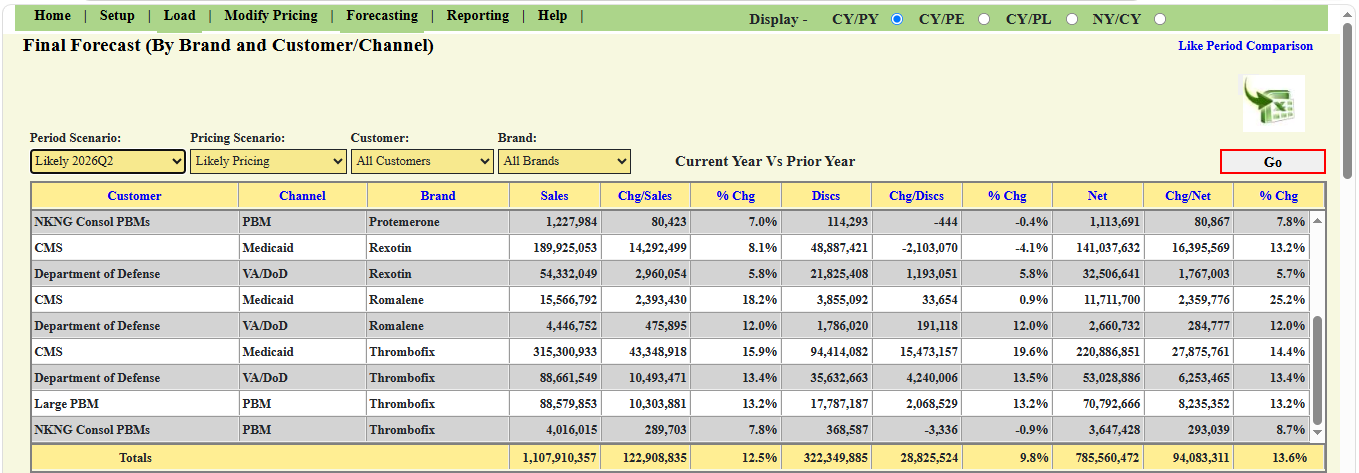
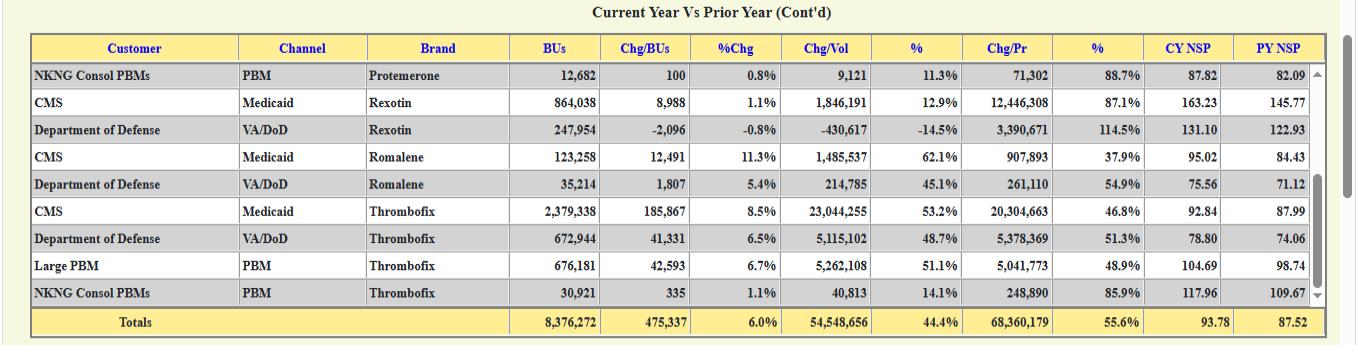
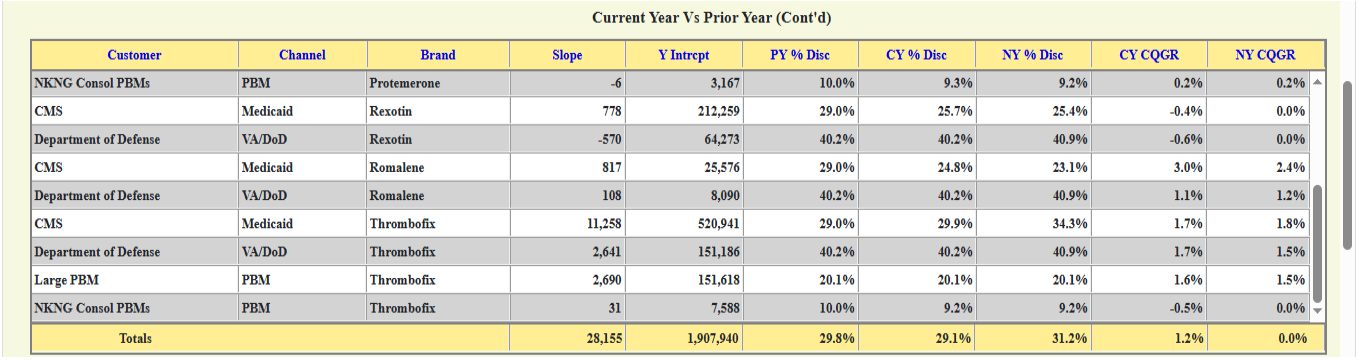
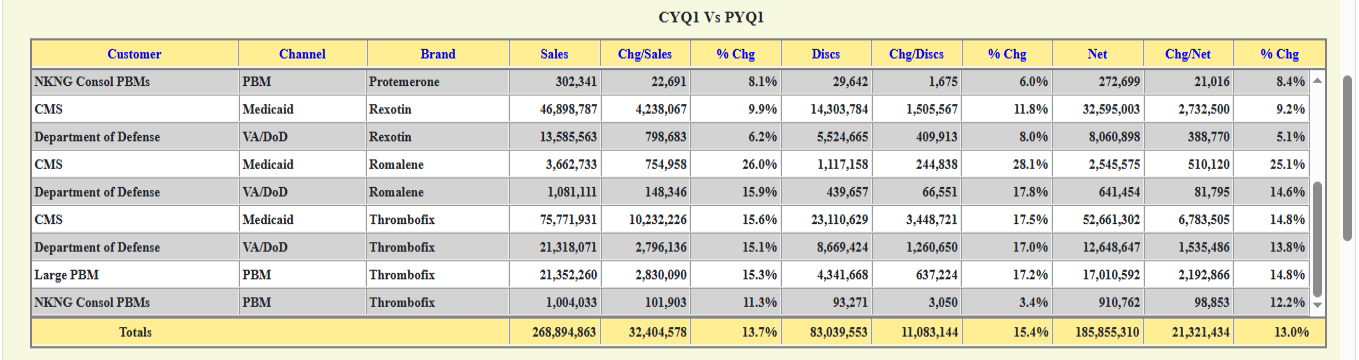
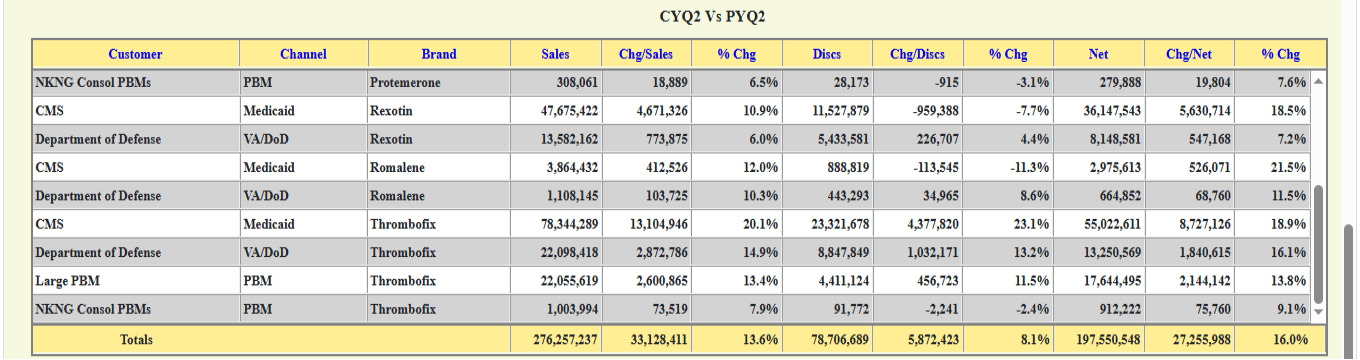
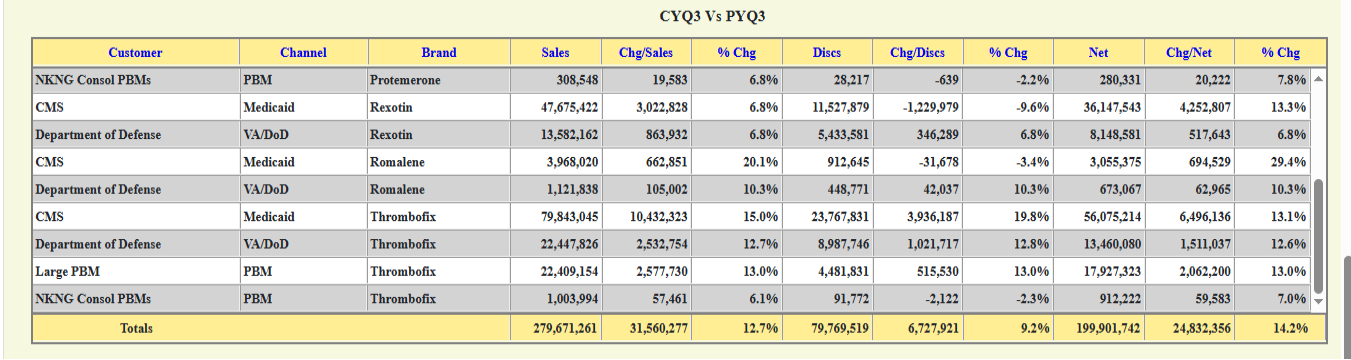
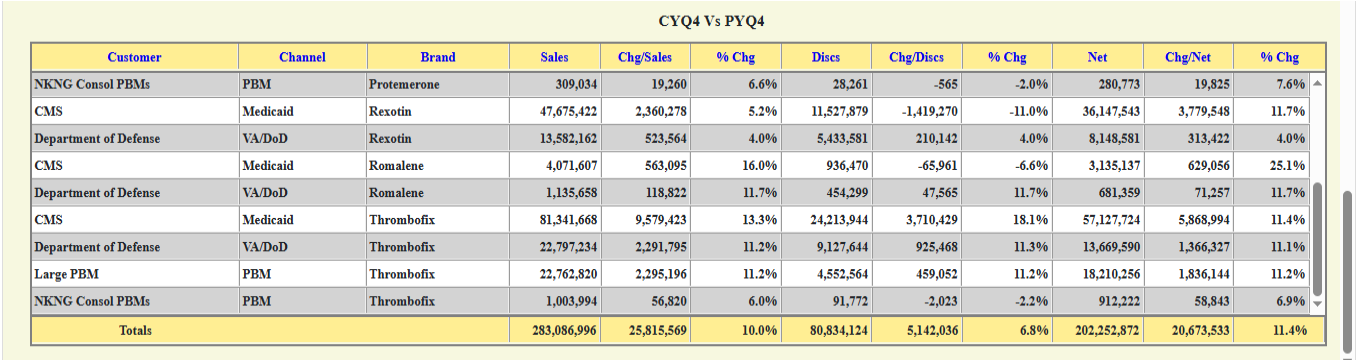
- Radio buttons used to select period comparisons rendered to the screen - Current Year vs. Prior Year (default shown here), Current Year vs. Prior Estimate, Current Year vs. Plan, or Next Year vs. Current Year.
- Button used to export all 4 comparisons (listed above) to Excel (in table format). Note, each comparison has its own tab.
- All column headings are clickable and sort the table by the selected column value (low to high or high to low).